
Digital Organization for People Who Hate Organizing
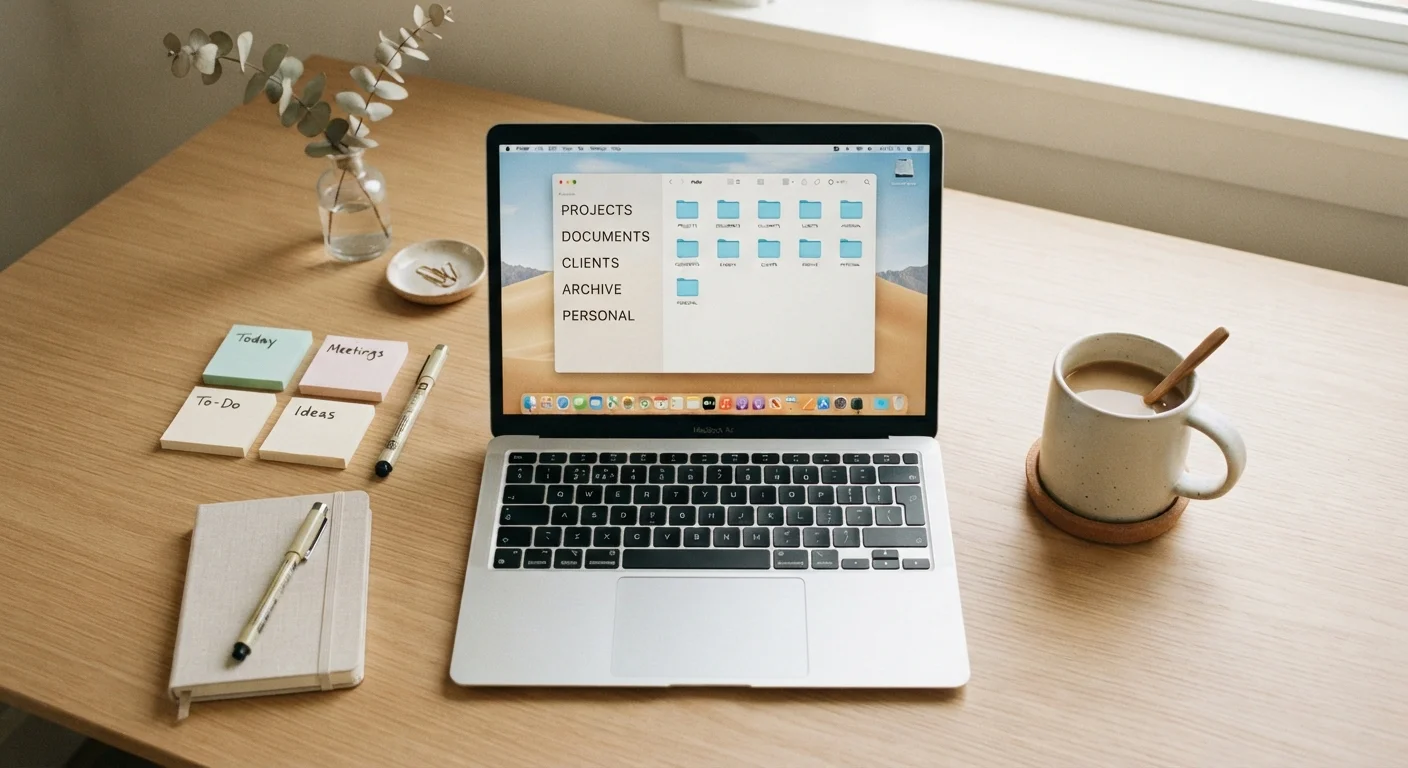
Photo credit: TrendingFaqs.com
In this article
Simple, low-effort strategies for keeping your files, emails, and apps manageable without overhauling your entire digital life.
Key Takeaways
- A single, flat folder system beats a complex hierarchy most people abandon within a week.
- Unsubscribing from one source of email noise does more than sorting messages into folders.
- Search functions in most apps are powerful enough to replace obsessive manual filing.
- Syncing tools keep your calendar and notes consistent across devices without extra effort.
- Small, repeated habits prevent the digital clutter that feels impossible to clean up later.
Why most organization systems fail non-organizers
Most digital organization advice is written for people who already enjoy organizing. It assumes you will build nested folder trees, color-code labels, and review your system weekly. If that describes you, great. If it does not, those systems collapse fast because the maintenance cost is higher than the payoff.
The goal here is different: minimum setup, low ongoing effort, and good enough results. You do not need a perfect system. You need one that stops things from piling up to the point where finding anything feels impossible.
Digital clutter and physical clutter share the same root cause. If you have worked through a room-by-room decluttering approach, you already know that small, repeated actions beat a single heroic clean-out. The same logic applies to files, emails, and apps.
Files: the one-level rule
Nested folders feel organized in theory and chaotic in practice. After two or three levels deep, most people stop filing correctly and start dumping everything on the desktop or in Downloads.
A more durable approach: one top-level folder per life area (Work, Finance, Health, Personal), and everything goes directly inside the matching folder with a clear filename. That is it. No subfolders unless a folder grows past roughly 50 files, at which point a single subfolder makes sense.
Use your device's search to find specific files rather than browsing. Modern search on Windows, macOS, and cloud storage tools like Google Drive or Dropbox indexes file names and, in many cases, content inside documents. Searching for "lease 2023" will find the file in seconds. Comparing cloud storage options can help you decide where to keep files so they are available across all your devices.
For documents that also exist on paper, the same principle applies. Managing paper clutter covers which physical documents to keep and for how long, so your digital and physical systems stay consistent.
Name files with a date prefix so they sort chronologically without extra effort.
Files named with a year-month-day prefix (for example, 2024-03-15-tax-return) automatically appear in order when sorted alphabetically. This removes the need to remember when you created something or to manually sort piles of documents.
Delete files you will never need again at the moment you finish with them.
Clutter builds because deletion gets deferred. Removing a file the moment it is no longer useful takes two seconds and costs nothing, while leaving it creates a pile that eventually requires a time-consuming cleanup session.
Use one cloud storage location for all important documents rather than spreading them across multiple services.
Splitting files across several platforms (desktop, a cloud drive, email attachments, a second cloud service) means you regularly cannot remember where something is. A single location removes that friction entirely.
Run a 15-minute monthly sweep instead of organizing in real time.
Filing every file the moment it arrives creates a constant low-level task. A scheduled monthly sweep concentrates that effort into a predictable block, which most people find easier to follow through on.
Email: stop organizing, start reducing
Inbox zero is a fine idea that requires constant attention most people cannot sustain. A more realistic goal is an inbox where nothing important gets buried.
The highest-return action is unsubscribing. Every newsletter, promotional list, or notification email you stop receiving is one less thing to ignore, move, or delete. Spending ten minutes unsubscribing from sources you never read produces a cleaner inbox than any folder system.
For what remains, two folders cover most situations: one for things that need a response, one for things you want to keep for reference. Everything else gets deleted or archived. Most email clients have a single-button archive that removes a message from your inbox without deleting it, and their search makes retrieving archived mail straightforward.
Understanding why your inbox feels unmanageable walks through the specific habits and tool features that help most with email overload.
Apps and devices: less is more maintainable
Every app you install is a potential source of notifications, storage use, and cognitive load. Apps you have not opened in six months are unlikely to become useful. Deleting them removes clutter from your home screen and, often, stops background data use.
For apps you do keep, notifications are the main issue. Most people find that allowing notifications from only two or three apps (messaging and one calendar, for example) reduces distraction without missing anything urgent. Every other app can be checked intentionally rather than responding to alerts.
Keeping your calendar and notes synced across your phone, tablet, and computer means you never have to wonder which device has the current version. Syncing calendars, contacts, and notes across devices explains how that works in practice. If you are new to digital note-taking and want a simple starting point, a beginner's overview of note-taking apps covers the differences between the main options without requiring you to commit to a complex setup.

Author
Tech Editorial Team
Tech Editorial Team is the collective byline for our editorial team and contributor network. Articles published under this byline or an editorial pen name are researched, written, and reviewed according to our editorial standards for clarity, consistency, and independence before publication.
View all articles →