
Syncing Your Digital Life: Calendars, Contacts, and Notes Across Devices
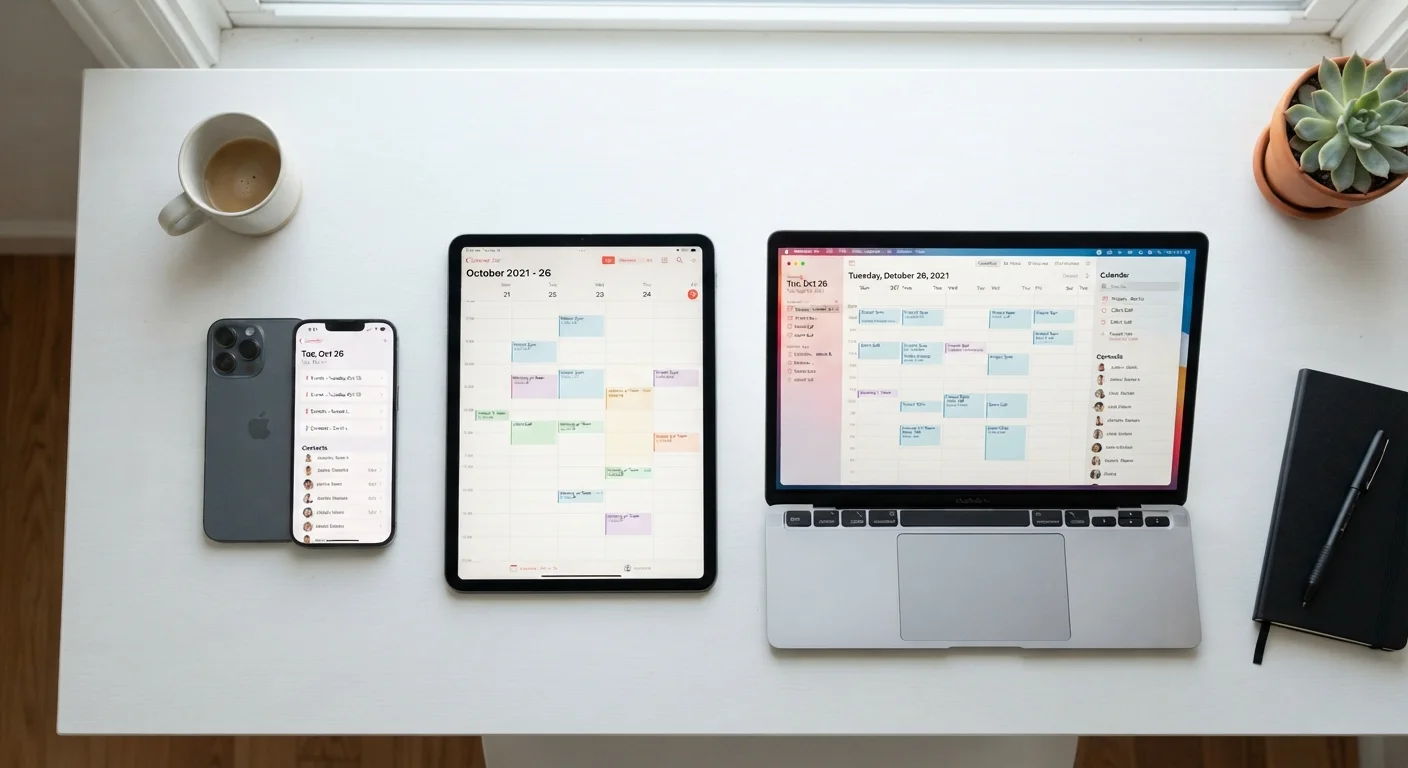
Photo credit: TrendingFaqs.com
Learn how device syncing works and how to keep your calendar, contacts, and notes consistent whether you use iPhone, Android, or a PC.
Key Takeaways
- Syncing works by storing your data in a cloud account that each device reads and writes to.
- A single account per service (Google, Apple, or Microsoft) is the most reliable sync foundation.
- Most sync problems trace back to being logged in to different accounts on different devices.
- Contacts, calendars, and notes each have their own sync toggle; check all three in your settings.
- Free storage tiers cover most personal syncing needs, but quotas do fill up over time.
How syncing actually works
Syncing is not a direct device-to-device transfer. When you add a contact or a calendar event, your device sends that data to a server tied to your account. Every other device signed in to the same account fetches updates from that server on a schedule, or immediately if push notifications are enabled. The data lives in the cloud; your devices are just windows into it.
This matters because it means sync is only as reliable as your account setup. If two devices use different accounts, they read from different servers and will never share data. For a broader look at how app connectivity affects what you can access offline, see when offline vs. online apps matter.
Contacts, calendars, and notes are three separate data types. Each has its own sync toggle in your device settings, and each app handles sync independently. Turning on sync for your Google account does not automatically enable all three types; you have to check each one. That distinction is where most people run into trouble.
Google account
Syncs Gmail contacts, Google Calendar events, and Google Keep notes across Android, iOS, and any browser.
Apple ID / iCloud account
Syncs Contacts, Calendar, and Notes natively on iPhone, iPad, and Mac with no extra apps needed.
Microsoft account
Syncs Outlook contacts, Outlook Calendar, and OneNote across Windows PCs, Android, and iOS.
iOS or Android Settings app
Used to add accounts and enable per-data-type sync toggles on each mobile device.
Step-by-step setup
Follow these steps on each device you want to keep in sync. The process takes about 10 to 15 minutes per device.
What you will need
Choose one primary account ecosystem
Decide which ecosystem will be your anchor: Google if you use Android heavily, Apple if most of your devices run iOS or macOS, or Microsoft if you work primarily on Windows. You can bridge ecosystems later, but starting with one account per data type prevents duplicates.
Add your account to every device
On iPhone or iPad: go to Settings, tap your name at the top, then select iCloud to enable Apple data, or go to Settings > Mail > Accounts > Add Account to add a Google or Microsoft account.
On Android: open Settings, tap Passwords & Accounts (or Accounts, depending on your version), then Add Account. Sign in with your Google or Microsoft credentials.
On Windows PC: open Settings > Accounts > Email & accounts, then Add an account. For Google data on a PC, use the Google Calendar website or download the Outlook desktop app and link your Google account there.
Turn on sync for each data type
Adding an account does not automatically enable all data types. You must verify each toggle individually.
- iPhone/iPad: Settings > your name > iCloud. Flip on Contacts, Calendars, and Notes separately.
- Android with Google: Settings > Passwords & Accounts > Google > your account > Account sync. Toggle Contacts, Calendar, and Keep (if listed).
- Android with Microsoft: Same path, select your Microsoft account, then toggle Contacts and Calendar.
Verify that notes are included
Notes apps vary more than calendars or contacts. Apple Notes syncs only through iCloud; it will not appear in a Google account. Google Keep syncs only to Google. If you use both, you need to pick one app and migrate your notes there, or accept that each ecosystem has a separate note store.
Microsoft OneNote is available as a free download on iPhone, Android, and Windows, making it a practical choice if you move between all three platforms. For a broader overview of options, see how note-taking apps differ.
Test sync by creating a test entry
On one device, create a calendar event called 'Sync test' set 10 minutes in the future, add a contact named 'Test Contact 000', and write a short note. On a second device, open each app and confirm all three items appear within two to three minutes. Delete the test entries once confirmed.
Check your storage quota
Sync stops working when your cloud storage is full. Google gives 15 GB free shared across Gmail, Drive, and Photos. iCloud gives 5 GB free. Microsoft gives 5 GB free with OneDrive. If sync suddenly stops on all devices at once, a full quota is the likely cause. Check storage at account.google.com, icloud.com, or account.microsoft.com respectively, and delete old files or upgrade your plan if needed.
Common problems and how to fix them
If a calendar event disappears after you edit it on one device, you may have two calendars with similar names, one synced and one local. Open your calendar app's settings, look at the list of calendars, and confirm your events are saved to the synced calendar (usually labeled with your account email), not a calendar called 'On my iPhone' or 'Device'.
Duplicate contacts are common when two accounts both sync contacts to the same phone. The fix is to pick one account for contacts, disable contact sync on the other account, then merge duplicates using your phone's built-in contact management or your account's web interface (contacts.google.com for Google, icloud.com for Apple).
If notes go missing, check whether you recently changed your account password. A password change often requires you to sign back in to the account on each device before sync resumes. Go to Settings, find the affected account, and look for a prompt asking you to re-enter credentials.
Keeping your devices in working order also reduces unexpected sync interruptions. Routine software updates, for example, often fix background sync bugs. The maintenance habits most people skip guide covers what to check and how often. For a wider look at keeping your digital files organized alongside your synced data, low-effort digital organization strategies offers practical starting points.
Automate repetitive calendar tasks
Once your calendar syncs reliably across devices, you can go further with automation tools that create events or reminders for you. Phone-based automation apps can watch for triggers like an arriving email and add a calendar entry automatically. See how automation apps handle repetitive phone tasks for concrete examples that require no coding.

Author
Tech Editorial Team
Tech Editorial Team is the collective byline for our editorial team and contributor network. Articles published under this byline or an editorial pen name are researched, written, and reviewed according to our editorial standards for clarity, consistency, and independence before publication.
View all articles →