
Your Home Router: What It Does and Why Its Settings Matter
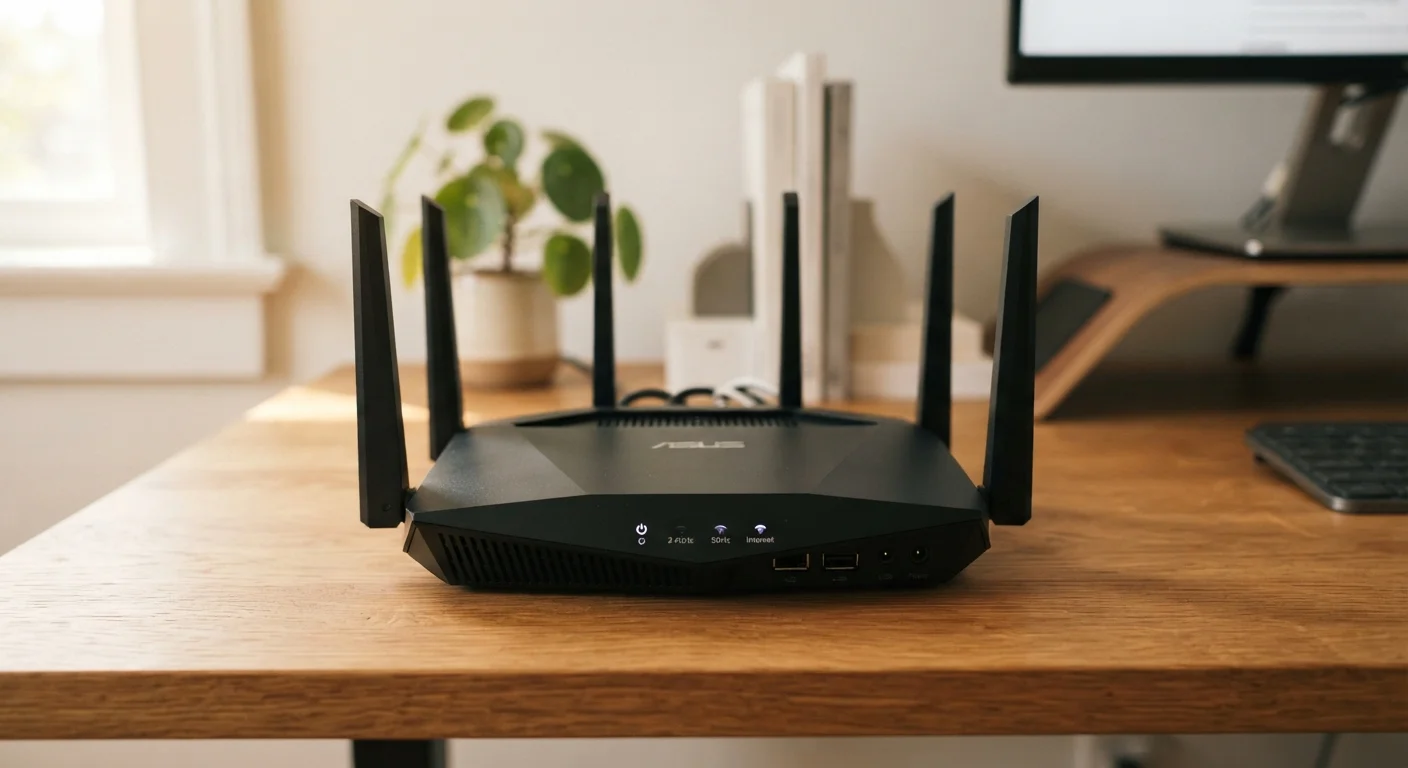
Photo credit: TrendingFaqs.com
In this article
A clear explanation of what your router controls and which default settings are worth changing for safety.
Key Takeaways
- Your router assigns addresses to every device on your home network and directs their internet traffic.
- Default router passwords and network names are publicly known and should be changed immediately.
- Firmware updates patch security vulnerabilities that attackers can otherwise exploit.
- A guest network keeps visitors and smart home devices isolated from your main devices.
- The admin interface is the control panel where all meaningful router settings live.
What a router does, in plain terms
Your router sits between every device in your home and the internet. When you load a web page on your laptop, the request travels from the laptop to the router, which forwards it to your internet service provider and then to the wider web. The response takes the same path in reverse. This happens in milliseconds, continuously, for every device connected to your network.
To manage this traffic, the router uses a process called Network Address Translation (NAT). Your internet provider assigns one public IP address to your home. The router keeps that address facing outward while assigning a separate private address to each phone, computer, television, and smart device inside. NAT lets dozens of devices share one internet connection without colliding. For a deeper look at how internet connectivity reaches your home in the first place, see what the internet is and how it reaches your home.
The router also runs a basic firewall. By default, it blocks connection attempts that originate from outside your network. Traffic you initiate, like loading a video or checking email, passes freely. Traffic nobody inside your home asked for gets dropped. This is a meaningful security boundary, though it is not the only one you need.
The admin interface: your control panel
Every router has an admin interface, a web page accessible from inside your home network. You reach it by typing your router's gateway address into a browser. The address is usually printed on a sticker on the device itself, and 192.168.1.1 or 192.168.0.1 are the most common defaults. Log in with the admin username and password, which are also on that sticker until you change them.
From the admin interface you can rename your Wi-Fi network, change passwords, set up a guest network, check which devices are connected, update firmware, and adjust more advanced settings like port forwarding. Most users only need a small fraction of what is available, but knowing the interface exists and how to reach it is the starting point for everything else.
Write down your new credentials
After changing your router's admin password and Wi-Fi password, store them somewhere secure, such as a password manager or a written note kept in a safe place. Losing access to the admin account means a full factory reset, which requires reconfiguring all network settings from scratch.
Default settings that are worth changing
Router manufacturers ship every unit with preset credentials. The admin password is often something like 'admin' or 'password', and the Wi-Fi password may be a short string printed on the device. These defaults are not secret. They circulate in public databases and are the first thing someone probing your network would try.
Three changes make a measurable difference in security:
- Change the admin password. Use a long, unique password for the router's admin account. This is separate from your Wi-Fi password and controls access to all router settings.
- Change the Wi-Fi network name and password. The default network name (called an SSID) sometimes reveals the router model, which tells an attacker which known vulnerabilities to target. Pick a name that does not identify your address or household, and use a strong Wi-Fi password.
- Enable firmware updates. Router firmware is software, and it has vulnerabilities. Manufacturers release patches when flaws are discovered. Many newer routers can apply updates automatically; on older models you may need to check the admin interface manually.
83%
Home routers with default credentials never changed
According to research published by the American Consumer Institute in a home network security study, a large share of consumer routers remain on factory-default login credentials.
WPA3
Current Wi-Fi encryption standard
The Wi-Fi Alliance introduced WPA3 in 2018 as the successor to WPA2, with stronger protections against offline dictionary attacks on passwords.
If your router supports WPA3 encryption for Wi-Fi, enable it. WPA3 is the current standard and more resistant to certain password-guessing attacks than the older WPA2. Many devices still support only WPA2, so some routers offer a combined WPA2/WPA3 mode for compatibility.
Guest networks and device isolation
A guest network broadcasts a separate Wi-Fi signal on the same router. Devices connected to it can reach the internet but cannot see or communicate with devices on your main network. The practical uses are straightforward: visitors get internet access without touching your files or printers, and smart home devices, which often have weaker security practices, sit in a separate segment away from your computers and phones.
Smart home devices have become a notable weak point. A light bulb or thermostat running outdated firmware on your main network could, in theory, be a path to other devices on the same network. Moving those devices to a guest network limits that exposure. For more on this pattern, see smart home setup mistakes new owners make.
Wi-Fi problems like dropped connections are sometimes traced back to router configuration rather than the internet connection itself. Why Wi-Fi keeps dropping covers the specific router-side causes in detail.
What the router does not protect against
The router's firewall stops uninvited inbound traffic, but it does not inspect what you or your devices initiate. Clicking a malicious link, downloading infected software, or visiting a phishing site are actions that originate inside your network, so the router's firewall has no role in blocking them. Those threats require up-to-date software, careful browsing habits, and, in some cases, additional tools.
A VPN (Virtual Private Network) is one tool people use alongside router-level security. It encrypts the traffic leaving your device before it even reaches the router, which is useful on networks you do not control. On your home network, the router itself is already a trusted boundary, so a VPN serves a different purpose. VPNs explained: what they protect and when they help separates the real benefits from the marketing claims.
On public networks, where no router you control is in the picture, the risk profile changes entirely. Staying safe on public Wi-Fi covers the specific habits that reduce exposure in those situations.
Frequently Asked Questions

Author
Tech Editorial Team
Tech Editorial Team is the collective byline for our editorial team and contributor network. Articles published under this byline or an editorial pen name are researched, written, and reviewed according to our editorial standards for clarity, consistency, and independence before publication.
View all articles →