
Why Your Wi-Fi Keeps Dropping (And What to Do About It)
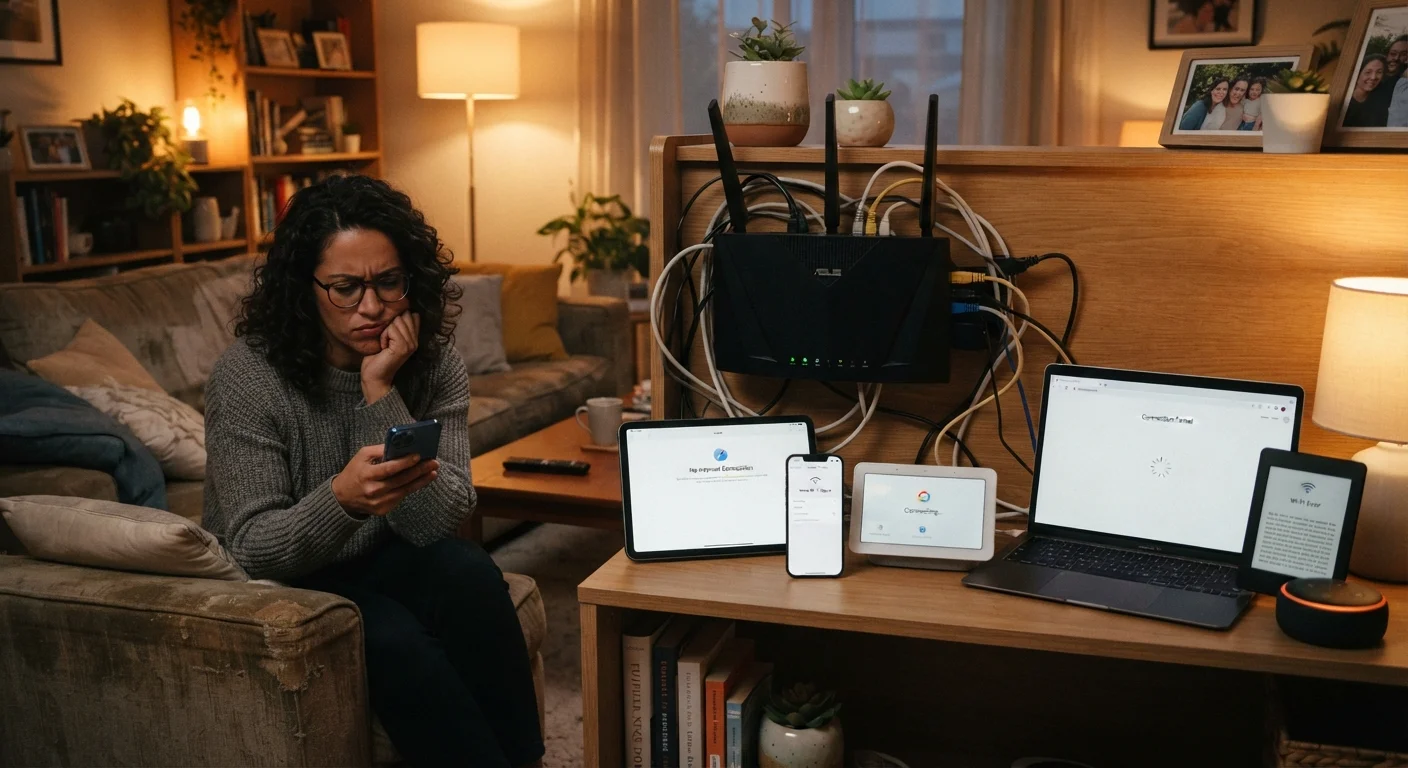
Photo credit: TrendingFaqs.com
In this article
Common reasons a home wireless connection becomes unreliable, and the steps most likely to fix each one.
Key Takeaways
- Router placement and physical obstructions cause more drops than most people expect.
- Outdated firmware and default channel settings quietly degrade connection stability over time.
- Overloaded networks and too many connected devices share responsibility for frequent drops.
- Most fixes require no special tools and can be done in under 30 minutes.
Why diagnosing the right cause matters
A Wi-Fi connection that cuts out every hour feels like a hardware problem. Often it is not. The most common culprits are configuration choices, physical placement, and network habits that are easy to overlook because they happened at setup and were never revisited.
Chasing the wrong cause wastes time and money. Someone who replaces a router that was never the problem, for example, ends up in the same situation a week later. Understanding which mistake is actually at work narrows the fix quickly. The sections below walk through the errors that account for the majority of home Wi-Fi drops, why each one happens, and what to do about it.
For a deeper look at what is happening inside the hardware when these problems occur, see what is actually happening inside your router.
The most common mistakes behind unstable Wi-Fi
The errors below are not exotic edge cases. They show up regularly in homes across every region and every connection type. If your signal drops daily, at least one of these is likely involved.
Placing the router in a corner, closet, or cabinet.
Why it happens: Routers are often tucked away for aesthetic reasons or to hide cables, which feels like a reasonable trade-off at the time.
Never updating the router's firmware.
Why it happens: Firmware updates are not automatic on most consumer routers, and many people assume the device manages itself after initial setup.
Leaving the router on the default Wi-Fi channel.
Why it happens: Most routers ship set to automatic channel selection or a common channel like 6 or 11 on the 2.4 GHz band. In dense neighborhoods, every router nearby may be on the same channel.
Connecting too many devices without managing bandwidth.
Why it happens: Every new smart device, streaming box, or phone added to the network shares the same total bandwidth. The count grows gradually and is rarely reviewed.
Ignoring interference from other household electronics.
Why it happens: Microwave ovens, baby monitors, cordless phones, and Bluetooth speakers all operate near the 2.4 GHz frequency and can disrupt the signal without any obvious connection to Wi-Fi.
If you are also setting up smart home devices, the same placement and firmware mistakes appear there too. The setup mistakes new smart home owners keep making covers overlapping ground worth reviewing.
When the problem is your internet service, not your router
Not every drop originates inside the home. Line degradation, node congestion from your internet service provider, or a connection type that is simply not well-matched to your usage can all look like a Wi-Fi problem when the signal is fine and the upstream link is not.
A quick test: connect a device directly to your modem with an ethernet cable and watch whether drops still happen. If they do, the issue is upstream of your router entirely. Understanding the difference between connection types helps here. Sorting out your connection options explains the practical differences between fiber, cable, and DSL and what each means for reliability.
Confirm where the problem actually starts
Calling your internet provider before doing any home troubleshooting can save hours of effort. Providers can run remote line diagnostics and often detect node-level congestion or signal degradation on their end. If they confirm the line is healthy, you can focus on the router and home network with confidence.
If direct ethernet tests show stable connectivity but Wi-Fi drops persist, the problem is almost certainly one of the router-side mistakes covered above. Start with firmware and channel settings before assuming hardware failure.

Author
Tech Editorial Team
Tech Editorial Team is the collective byline for our editorial team and contributor network. Articles published under this byline or an editorial pen name are researched, written, and reviewed according to our editorial standards for clarity, consistency, and independence before publication.
View all articles →