
Automation Apps: Letting Your Phone Handle Repetitive Tasks for You
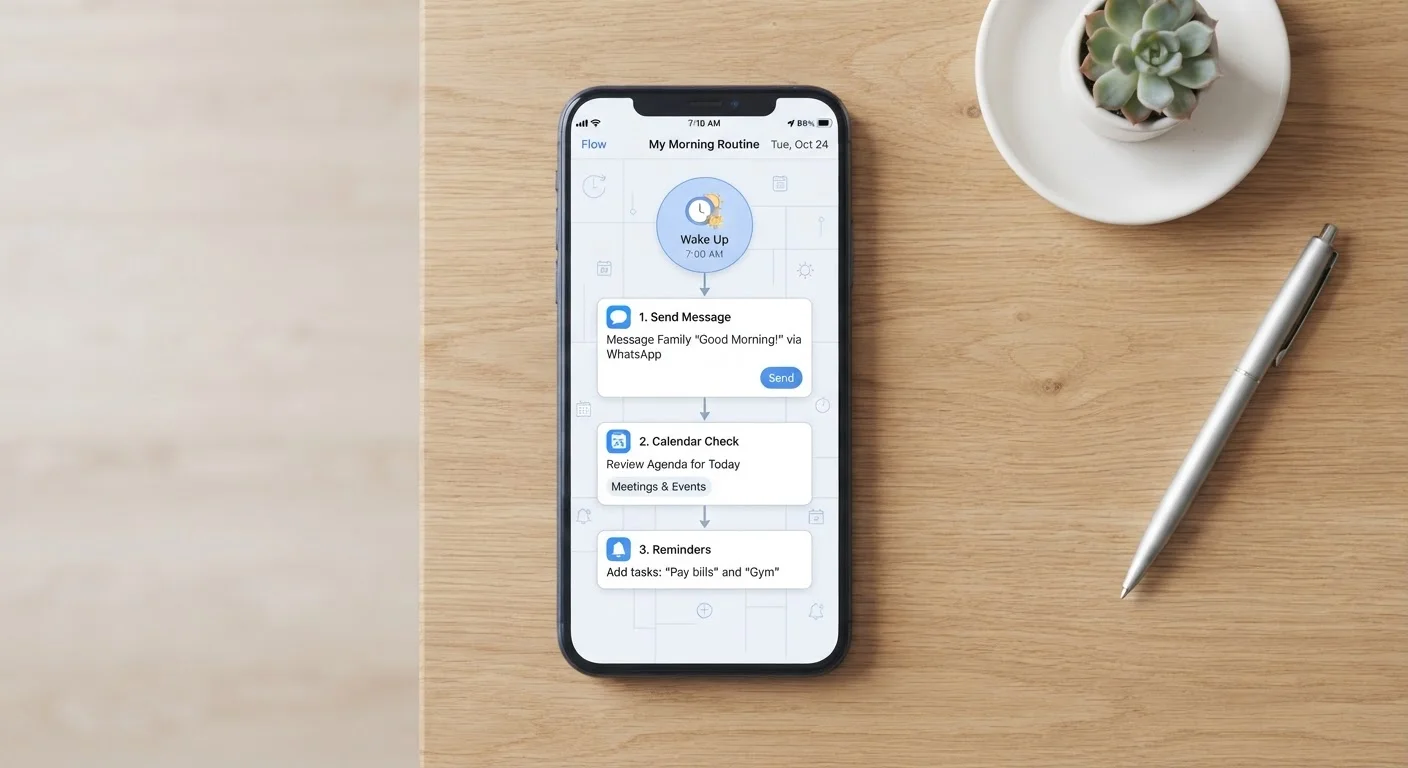
Photo credit: TrendingFaqs.com
In this article
Discover how everyday automation tools can handle routine digital chores, from text shortcuts to scheduled reminders, with no coding required.
Key Takeaways
- Automation apps work by connecting triggers to actions, requiring no coding skills to set up.
- Common uses include scheduled texts, text expansion, focus modes, and app-based reminders.
- Both Android and iOS have native automation features built into their operating systems.
- Third-party apps extend what the built-in tools can do, often with a visual drag-and-drop interface.
- Automation rules can save meaningful time on tasks repeated dozens of times each week.
What automation apps actually do
Every smartphone owner repeats the same digital steps dozens of times each week: turning down the volume before a meeting, typing out the same reply to common questions, or manually toggling settings when leaving the house. Automation apps replace those manual steps with rules that run on their own.
The core idea is a trigger-action pair. A trigger is something that happens, such as a specific time arriving, your phone connecting to a particular Wi-Fi network, or you opening a certain app. An action is what the phone does in response: silencing notifications, sending a pre-written message, or starting a playlist. You set the rule once, and the phone follows it indefinitely.
Both major mobile platforms include built-in tools for this. Apple's Shortcuts app lets iPhone users build multi-step automations with a visual editor. Android offers a similar feature called Routines in some versions, and Samsung devices include a separate Routines section in settings. Third-party apps extend these capabilities further, often allowing connections to outside services like cloud storage, email platforms, or smart home devices.
Start with your phone's built-in tools
Before downloading a third-party app, check what your phone already has. iPhone users can open the Shortcuts app and browse the Automation tab. Android users can search for 'Routines' or 'Digital Wellbeing' in settings. Built-in tools have no extra permissions to grant and often handle the most common use cases without additional software.
Practical uses that save real time
Text expansion is one of the most immediately useful forms of automation. You type a short abbreviation, such as "addr", and your phone replaces it with your full mailing address. Both iOS and Android have this built into keyboard settings, no extra app needed. People who answer similar questions by text or email repeatedly find this alone worth the setup time.
Focus modes and scheduled settings are another common use. You can tell your phone to silence all notifications except calls from specific contacts every weekday from 9 a.m. to 5 p.m., then automatically restore normal settings afterward. This removes the need to remember to flip the switch manually.
Location-based triggers add another layer. When your phone detects you have arrived at work, it can turn on Wi-Fi, disable mobile data, and open your calendar app. When you leave, it can reverse those steps. These rules run silently without any tap required.
Automated reminders go beyond the standard alarm. Some apps let you set a reminder that fires only when you are near a specific location, such as a grocery store, or only on days when a calendar event contains a particular word. That specificity makes reminders useful rather than easy to dismiss.
40%
of daily work tasks are highly repetitive
A 2023 report from Asana's Anatomy of Work Index found that a significant share of workers' time goes to repetitive coordination tasks that automation tools can address.
3+ hrs
per week saved by automating routine digital steps
Zapier's State of Business Automation survey found that workers who automate routine tasks report saving several hours each week on average.
How to start without feeling overwhelmed
The most useful starting point is to notice which digital task you repeat most often this week. That repetition is the best candidate for your first automation rule. Starting with one rule, rather than building a complex system immediately, lets you see how the trigger-action logic works in practice before expanding.
Both iOS Shortcuts and Android Routines have template libraries inside the apps. Browsing those templates shows what is possible and gives you working examples to modify. Changing a time or swapping one action in a template is much easier than building from scratch.
Third-party apps such as those that connect multiple services together generally require you to create an account and grant permissions to each service you want to link. Read the permission prompts carefully and only approve access that the rule actually needs.
If a rule does not behave as expected, check whether the app has the necessary permissions in your phone's settings, particularly location, notification, and background app refresh permissions. Most automation problems trace back to a missing permission rather than a flaw in the rule itself.
Automations do not replace judgment
Automated rules follow the conditions you define exactly, so an edge case you did not anticipate may produce an unexpected result. For example, a rule that sends a message when you leave a location will fire even on days when leaving is unusual. Reviewing your active rules every few weeks and disabling any that no longer fit your routine keeps your automations working as intended.
Frequently Asked Questions

Author
Tech Editorial Team
Tech Editorial Team is the collective byline for our editorial team and contributor network. Articles published under this byline or an editorial pen name are researched, written, and reviewed according to our editorial standards for clarity, consistency, and independence before publication.
View all articles →