
Your Phone's Storage Is Full: A Clear Guide to What's Taking Up Space
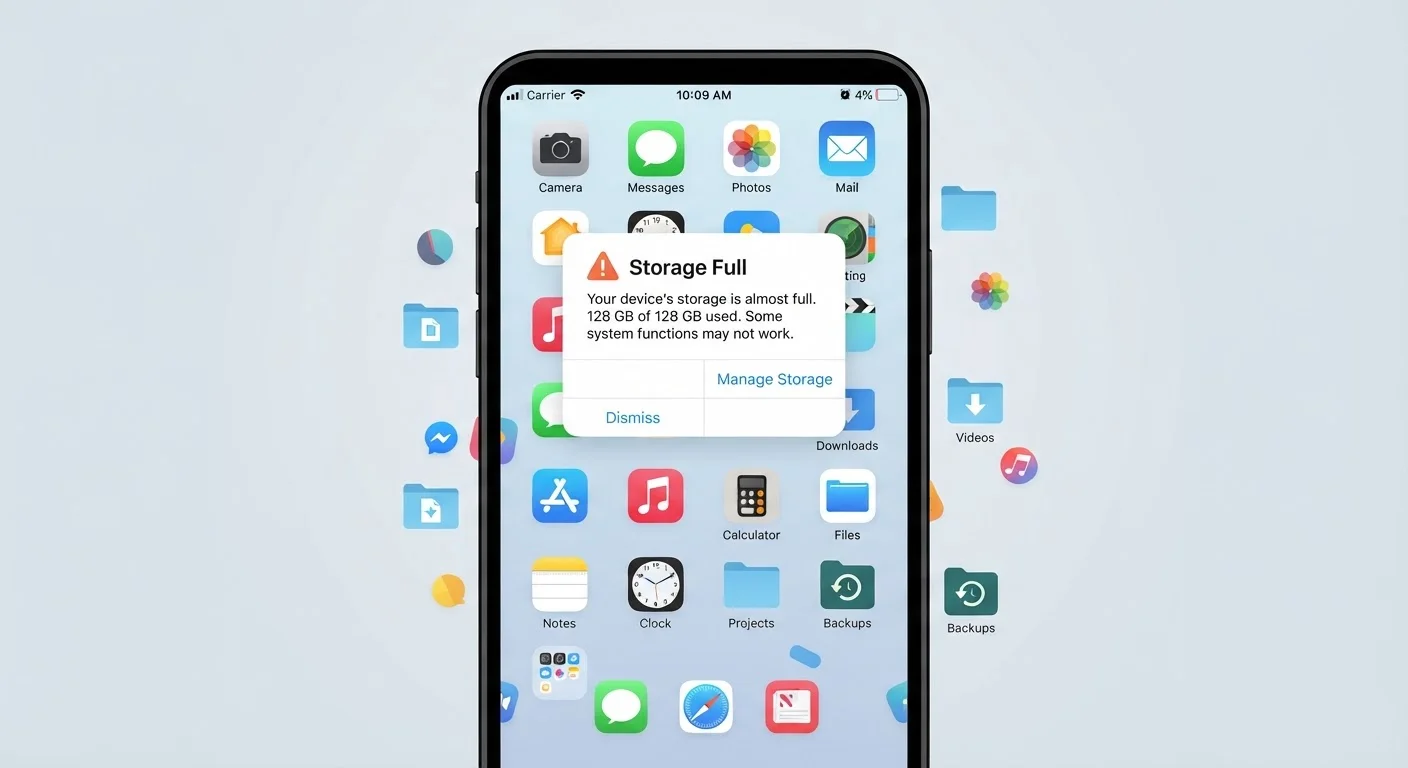
Photo credit: TrendingFaqs.com
In this article
Learn what app data, cached files, and system storage actually are, and how to make informed decisions before deleting anything.
Key Takeaways
- App data, cache, and system storage are three distinct categories, each with different deletion risks.
- Cached files are temporary and generally safe to clear, but they will rebuild automatically.
- Deleting app data resets an app to its default state, which may remove your saved settings or progress.
- System storage is reserved by the operating system and cannot be reclaimed by the user.
- Checking your phone's built-in storage breakdown is the safest first step before removing anything.
Why your phone fills up faster than you expect
When you buy a phone with 128 gigabytes of storage, you probably assume that number represents usable space. It does not. The operating system, pre-installed apps, and essential system files already occupy a portion of that capacity before you ever take the phone out of the box. On many devices, 10 to 20 gigabytes can be consumed by the software layer alone.
Beyond that initial reduction, storage accumulates in ways that are not obvious. Every photo your camera takes is larger than it appears in a thumbnail. A single minute of 4K video can exceed 300 megabytes. Apps grow over time as they download new content, save preferences, and store files needed for offline use. The storage bar fills gradually, then seems to hit a wall all at once.
App data
Files an app saves on your device, including your settings, login state, and any content you have created or downloaded within that app.
Cache
Temporary files an app stores to make future loading faster. These can be deleted safely and will rebuild automatically.
System storage
Space reserved for the phone's operating system and core software. This portion is not available for user files and cannot be deleted through normal settings.
Gigabyte (GB)
A unit of digital storage. One gigabyte holds roughly 250 standard photos or about 4 minutes of 4K video, depending on quality settings.
Operating system (OS)
The core software that runs your phone, such as iOS on Apple devices or Android on most other smartphones. It controls everything from the home screen to how apps install.
What app data actually means
Every app on your phone generates and stores data. This includes your login credentials (saved locally so you do not have to sign in every time), your preferences and settings, downloaded content like offline maps or saved podcast episodes, and any files the app creates on your behalf, such as a draft in a writing app.
This category is sometimes labeled "app data" or "data" in your phone's storage settings. It is distinct from the app installation file itself. If you uninstall an app, the installation file is removed, but on some Android devices the data folder may remain. On iPhone, deleting the app removes both.
Clearing app data is a more significant action than clearing cache. It resets the app to a blank state. For a social media app, that might just mean logging back in. For a game without cloud saves, it could mean losing all progress.
Cached files: what they are and whether to delete them
A cache is a collection of temporary files an app saves so it can load content faster on subsequent visits. When you open a news app, it may cache the article text and images you just read so they appear instantly if you scroll back. A browser stores web page elements in its cache so pages load more quickly on repeat visits.
Cached files are meant to be temporary. They are safe to delete because the app can recreate them the next time it runs. Clearing a cache does not log you out or remove any personal data you have saved. The trade-off is that the app may load slightly slower the first time after a cache clear, while it rebuilds those temporary files.
On Android, you can clear the cache for individual apps through Settings, then Apps. On iPhone, iOS manages cache automatically for most apps, though some individual apps provide a cache-clearing option within their own settings menus.
Clear cache by app, not all at once
Clearing the cache for one specific app at a time lets you observe the effect before moving on. Some Android devices offer a global cache clear option, but targeting individual apps gives you more control and makes it easier to identify which app was the storage culprit.
System storage and what you cannot touch
System storage is the portion of your phone's memory reserved for the operating system and core software. This includes the version of Android or iOS running on your device, built-in apps that cannot be uninstalled, and essential system libraries that other apps depend on.
Your phone's storage screen may show this as "System", "OS", or "Other" depending on the manufacturer. You cannot reclaim this space through the phone's normal settings. It is not wasted space; it is what allows the device to function. System storage can grow slightly after a software update, which is one reason phones sometimes feel more cramped after an update than before.
Some manufacturer skins (the customized software layer that brands like Samsung or OnePlus apply over Android) add additional pre-installed apps on top of the base Android system. Some of those apps can be disabled rather than deleted, which hides them from use but does not fully recover the storage they occupy.
How to check what is using your storage
Both Android and iOS provide a built-in storage breakdown. This is the right starting point before taking any action.
- On iPhone: go to Settings, then General, then iPhone Storage. The screen shows a color-coded bar at the top and a ranked list of apps below, sorted by how much space each one uses.
- On Android: go to Settings, then Storage. The exact path varies by manufacturer, but most devices show categories such as Apps, Images, Video, Audio, and Other.
Look at the largest categories first. Photos and videos are frequently at the top, followed by apps with large local downloads (streaming services that cache content, for example). The storage screen for individual apps typically shows the split between the app itself, its data, and its cache, which helps you decide whether clearing one category is worthwhile.
Making decisions before you delete anything
Before removing anything, confirm whether it is backed up. Photos and videos should be verified in a backup service before deletion from the device. App data that lives only on the phone (certain game saves, offline documents) cannot be recovered once deleted.
A practical approach is to work in order of risk. Start with cached files, which carry no meaningful risk. Then review large media files and consider whether local copies are necessary if they exist in cloud storage. Next, look at apps you have not opened in several months; uninstalling them removes both the installation file and local data. Finally, check whether any app is storing downloaded content (maps, episodes, courses) that you no longer need.
Avoid deleting unfamiliar files labeled "Other" or "System" without researching what they contain. Some of those files support functions across multiple apps and removing them can cause unexpected behavior.
This article is for general informational purposes only. Steps and menu names vary by device model and software version. Consult your device manufacturer's support documentation for guidance specific to your phone.
Frequently Asked Questions

Author
Tech Editorial Team
Tech Editorial Team is the collective byline for our editorial team and contributor network. Articles published under this byline or an editorial pen name are researched, written, and reviewed according to our editorial standards for clarity, consistency, and independence before publication.
View all articles →