
Getting More From Your Tablet Without Buying a New One
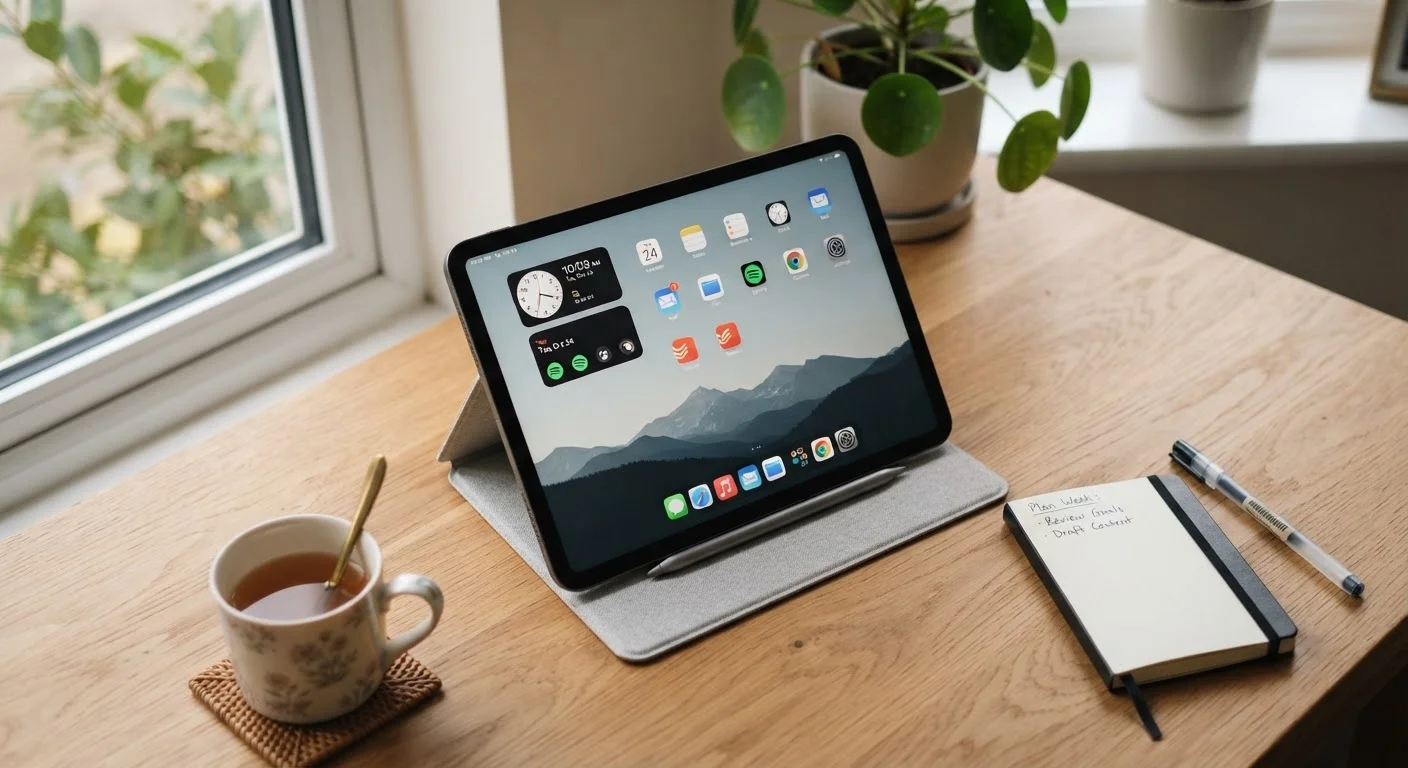
Photo credit: TrendingFaqs.com
In this article
Before you replace your tablet, try these practical steps to improve speed, extend battery life, and organize your apps for daily use.
Key Takeaways
- Clearing cached data and unused apps often restores noticeable speed without any cost.
- Background app refresh and location services are common causes of poor battery life.
- Organizing your home screen into folders reduces daily friction and helps you find apps faster.
- Keeping your operating system updated fixes bugs and can improve overall device stability.
- Storage management is the single most impactful step for tablets that feel sluggish.
Why your tablet may feel slower than it used to
Tablets slow down for predictable reasons. Storage fills up, apps accumulate background processes, and software updates add features that older habits never accounted for. None of these problems require a new device to fix.
The steps below address the most common causes. Work through them in order, since each one builds on the last. Most tasks take only a few minutes, and the combined effect is usually significant.
What you will need
Steps to get more from your tablet
Follow these steps on any Android or iPadOS tablet. The exact menu names vary slightly by manufacturer and operating system version, but the underlying settings are present on all current tablets.
Free up storage space
Go to Settings, then find Storage (on Android) or General > iPad Storage (on iPadOS). Review what is consuming space. Delete apps you have not opened in months, remove downloaded videos or podcasts you have already watched, and clear the cache for your browser and any streaming apps.
A tablet with less than 10-15% free storage runs noticeably slower because the operating system needs room to write temporary files. Freeing space is the fastest way to recover speed.
Update the operating system and apps
Go to Settings > Software Update (Android) or Settings > General > Software Update (iPadOS) and install any pending updates. Then open your app store and update all installed apps.
Manufacturers release updates that patch performance bugs and reduce memory use. Running outdated software means your device is not taking advantage of those fixes.
Limit background app activity
On Android, go to Settings > Battery > Battery Optimization and set non-essential apps to optimized or restricted mode. On iPadOS, go to Settings > General > Background App Refresh and turn it off for any app that does not need to update content while you are not using it.
Background processes are one of the main reasons tablets drain battery faster than expected. Restricting them does not stop apps from working; it just means they refresh when you open them rather than constantly.
Turn off unnecessary location services
Go to Settings > Location (Android) or Settings > Privacy & Security > Location Services (iPadOS). For each app, change the setting to Only while using the app or Never, unless the app genuinely needs your location at all times, such as a navigation app.
Apps with constant location access run a background process that uses both battery and processing power. Most apps that request location do not need it continuously.
Reduce screen brightness and timeout
Go to Settings > Display and lower the screen brightness to the lowest comfortable level for your environment. Set the screen timeout to 1 or 2 minutes rather than the default 5 or 10 minutes.
The screen is the largest battery drain on any tablet. Cutting brightness by 30% can add a meaningful amount of time to each charge cycle, particularly on large-screen models.
Organize your home screen into folders
Group related apps into folders by dragging one app icon onto another. Common groupings include social, utilities, reading, and entertainment. Move apps you use daily to your first home screen and everything else to a second screen or inside folders.
This step does not improve hardware performance, but it reduces the time you spend hunting for apps and makes the device easier to use day to day.
Clear app caches on Android
On Android, go to Settings > Apps, select an app, then tap Storage > Clear Cache. Prioritize browsers, social media apps, and streaming services, since these accumulate the largest caches over time.
iPadOS does not offer a manual per-app cache clear through settings; deleting and reinstalling the app achieves the same result for apps with very large caches.
Keeping the gains over time
The improvements from these steps last longer when a few habits stay in place. Restart your tablet once a week to clear temporary memory and close processes that accumulate silently. Check your storage every month or two and delete anything you have not used in the past 60 days.
Automatic app updates can quietly re-introduce heavy background processes after you disable them. Revisiting your battery and background-refresh settings every few months takes less than five minutes and prevents gradual slowdowns from building up again.
One restart does more than you think
A full restart closes background processes that persist even after you close apps manually. If your tablet feels sluggish after completing all the steps above, restart it before assuming more work is needed. Many users find the restart alone accounts for a significant part of the improvement they were looking for.

Author
Tech Editorial Team
Tech Editorial Team is the collective byline for our editorial team and contributor network. Articles published under this byline or an editorial pen name are researched, written, and reviewed according to our editorial standards for clarity, consistency, and independence before publication.
View all articles →