
What to Check Before a Firmware Update on Any Home Device
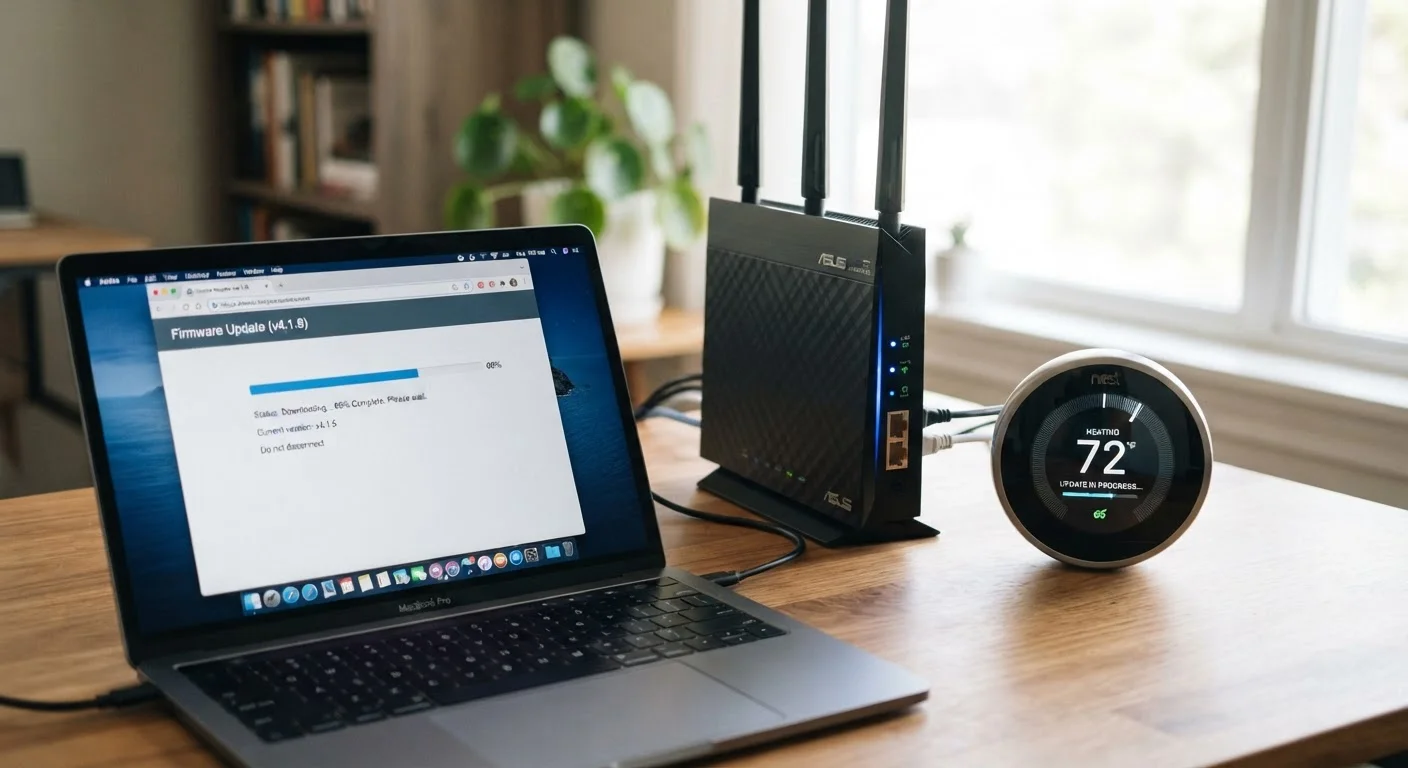
Photo credit: TrendingFaqs.com
In this article
Firmware updates can improve or brick a device. Use this checklist to verify backups, power stability, and compatibility before you start.
Key Takeaways
- A failed firmware update can leave a device non-functional, so preparation matters before you start.
- Stable power during an update is one of the most important factors for a successful outcome.
- Checking compatibility between the firmware version and your specific device model prevents most errors.
- Backing up device settings before updating lets you restore quickly if something goes wrong.
- Running updates over a wired connection or strong Wi-Fi reduces the risk of an interrupted download.
Why preparation matters before any firmware update
Firmware is the low-level software that controls how a hardware device operates. Routers, smart TVs, thermostats, security cameras, and even home appliances all run firmware. Manufacturers release updates to fix security vulnerabilities, resolve bugs, or add features.
The risk is that firmware writes directly to the device's internal memory. If the process is interrupted by a power outage, a corrupted file, or an incompatible version, the device may stop responding entirely. That outcome is sometimes called a "brick" because the device becomes about as useful as one.
This checklist walks through the steps to verify before you start any update, regardless of the device type. Work through each group before you touch the update button.
Device manual or support page
Provides model-specific update instructions and recovery procedures before you begin.
Wired Ethernet cable
Delivers a stable network connection for downloading firmware and applying updates to network devices.
Uninterruptible power supply (UPS)
Keeps the device powered during an update if your area has unstable electricity.
External USB drive or cloud folder
Stores exported configuration backup files so settings can be restored after an update.
Notepad or phone camera
Records current firmware version numbers, cable layouts, and custom settings before changes are made.
The complete firmware update checklist
Work through the groups below in order. Some items take only seconds; others require a few minutes. Complete every "must" item before proceeding.
Before you download anything
Power and connectivity
Backups and settings
Timing and environment
During and after the update
What to do if an update fails
Even with good preparation, updates can occasionally fail. Most modern devices detect a failed write and automatically restore the previous firmware version. Check the manufacturer's support documentation for a device-specific recovery procedure before you start, so you have it on hand if needed.
If the device becomes unresponsive, do not power-cycle it repeatedly. Some devices enter a recovery mode when powered on while holding a physical reset button. The manufacturer's website or support line is the appropriate next step, not guesswork.
Do not interrupt the update process
Cutting power or disconnecting the network while firmware is being written to memory is the most common cause of a bricked device. Once you start the update, let it finish without touching the device. If a power failure occurs mid-update, consult the manufacturer's recovery documentation before attempting anything else.
Keep a record of the firmware version you updated from. That information helps support staff and may be needed to apply a manual recovery image.

Author
Tech Editorial Team
Tech Editorial Team is the collective byline for our editorial team and contributor network. Articles published under this byline or an editorial pen name are researched, written, and reviewed according to our editorial standards for clarity, consistency, and independence before publication.
View all articles →